The main screen |
  
|
The main screen |
|
Below is the ASE Scorer main screen.
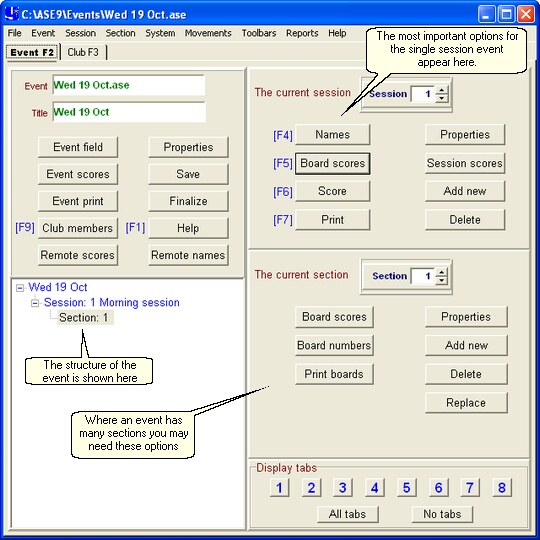
Simple screen interface
All the options you typically need are shown here as buttons.
The two main tabs are accessible by using the [F2] and [F3] function keys. This allows you to switch between the [Event] related options and the [Club] related options.
[Event F2] Tab
The screen as shown above is divided into 5 distinct areas.
Event panel
Top left is the 'event' panel with the options to use all the key features of the event. The buttons are [Event field], [Event scores], [Event print], [Properties], [Save] and [Finalize].
To view the members master file, add new players etc. use the [Club members] button on the top left panel or use [F9]. For help at any time press [F1].
The current session panel
This panel is the key panel on the screen and the four main options are [names], [Board scores], [Score] and [Print] are found here.These are also accessible using function keys [F4], [F5], [F6] and [F7] respectively. Typically you would use these options in that order.
The other session options are [Properties], [session scores], [add new] and [delete].
[add new]
Add a new session to the current event. The event wizard is invoked to create the next session. The new session number will be one more than the last session in the event.
[Delete]
Delete the current session in the event. The current session number is shown at the top of this screen. All other sessions are renumbered from one, with the current session being replaced by the original next higher numbered session.
The current section panel
These options relate specifically to the current section, the number shown in the box to the right. [Board scores] is the same as [F5] in session options. [Board numbers] allows you to change the board numbers being played in the section. Use [Print boards] to produce a board report.
The other section options are [Properties], [add new], [delete] and [replace]. The [add new] button allows you to add a new section to the current session, typically a section playing the same boards as those already defined. [delete] will delete the current section and [replace] will replace the current section with a new one you will define using the section wizard.
The event structure panel
This shows all the sessions and sections in the event. You may click on any line to change the 'currency' of the session or section.
The display tabs panel
This is for those users who wish to see all or any of the other hidden tabs. These are typically for the more advanced options and are recommended for the more experienced users. Hover the mouse over any one of the numbers to see the title of the tab the number will select. With all the tabs showing the display is very much like the older ASE8 display, though the details tab, number 9, (shown above) is more complete.
[Club] Tab
When the [Club] tab is selected (not visible above) the 4 subordinate tabs (numbered 1 to 4) are shown. Clicking on the tab also brings it on top for you to use. All the available options for managing the club are accessible from this tab.